

October 2026 · 7 min read

After driving is complete, you have to check whether each pile sits where it was designed and how far it went in. That means tracking down every pile number and matching the drawing, the log, and the measured values. At this point, linking pile driving management with drone data lets you automatically compare the design position with the as-built position on the platform and calculate penetration depth from the construction records for easy review.
You can narrow down what else to check by viewing the records and photos of the same pile together. After the driving logs are collected, what review comes next? You have to find the pile number on the drawing, look at the as-built position and depth, and identify the cause of any result that differs from expectations. This article follows that review sequence to look at where drone data can be used and where a person still has to judge.
What You'll Find in This Article
In conventional pile driving management, you record the construction details for each pile and compare the as-built position with the design to compile the results. Once the logs are collected, the next step is matching the records inside them, the design material, and the values checked on site by the same pile number.
Here is the material needed, in order, from before construction to after.
Material needed to check a single pile
The material splits into before, during, and after construction, and the review starts by matching all three by the same pile number.
01
Before construction — design position
You find the pile number and coordinates on the drawing and mark the spot to be driven on site.
02
During construction — record for each pile
You record the construction date, pile length, and driving and penetration conditions. Depending on the method, drilling depth and grout injection volume are also managed.
03
After construction — design vs. actual comparison
You match the surveyed coordinates of the pile center against the design coordinates and compile the differences pile by pile.
The three sets of material have to connect by the same pile number before you can check positional difference and depth.
The Standard Specification for Prefabricated Piles (KCS 11 50 15) also covers, along with construction records for each pile, an as-built location drawing containing the error between the design position and the actual construction position. It also includes methods for keeping construction records with equipment and automated systems.
What you can check differs slightly from one source to the next. The log tells you when and which pile was driven, and the position data shows how far it ended up from the designed spot. To see depth, you also have to look at the pile length and the reference elevation together.
Finding the pile number in each source, transferring the values, and calculating repeats as many times as there are piles. With a drone platform, the work of finding the pile center, comparing it with the design position, and calculating depth can be handled automatically.
Upload the design file and the pile driving log, prepare the post-construction imagery, and you can run the calculation. From there, the platform automatically finds the pile centers in the photos, corrects the positions, and calculates the pile center error and penetration depth. The cross-checking and calculation you used to repeat for every pile can be handed to the system.
The 'pile center' — the center point of the pile — is the reference when comparing the designed position with the actual as-built position. The platform compares the center found in the drone photo with the design coordinates and calculates how much it differs in the X and Y directions.
You can view the result value together with the photo of that pile. If a value comes out larger than expected, start by checking whether the center detected in the photo is correct. You can also see with your own eyes in which direction the design position and the actual position are offset. Seeing the numbers and the actual appearance together makes the difference far easier to understand.
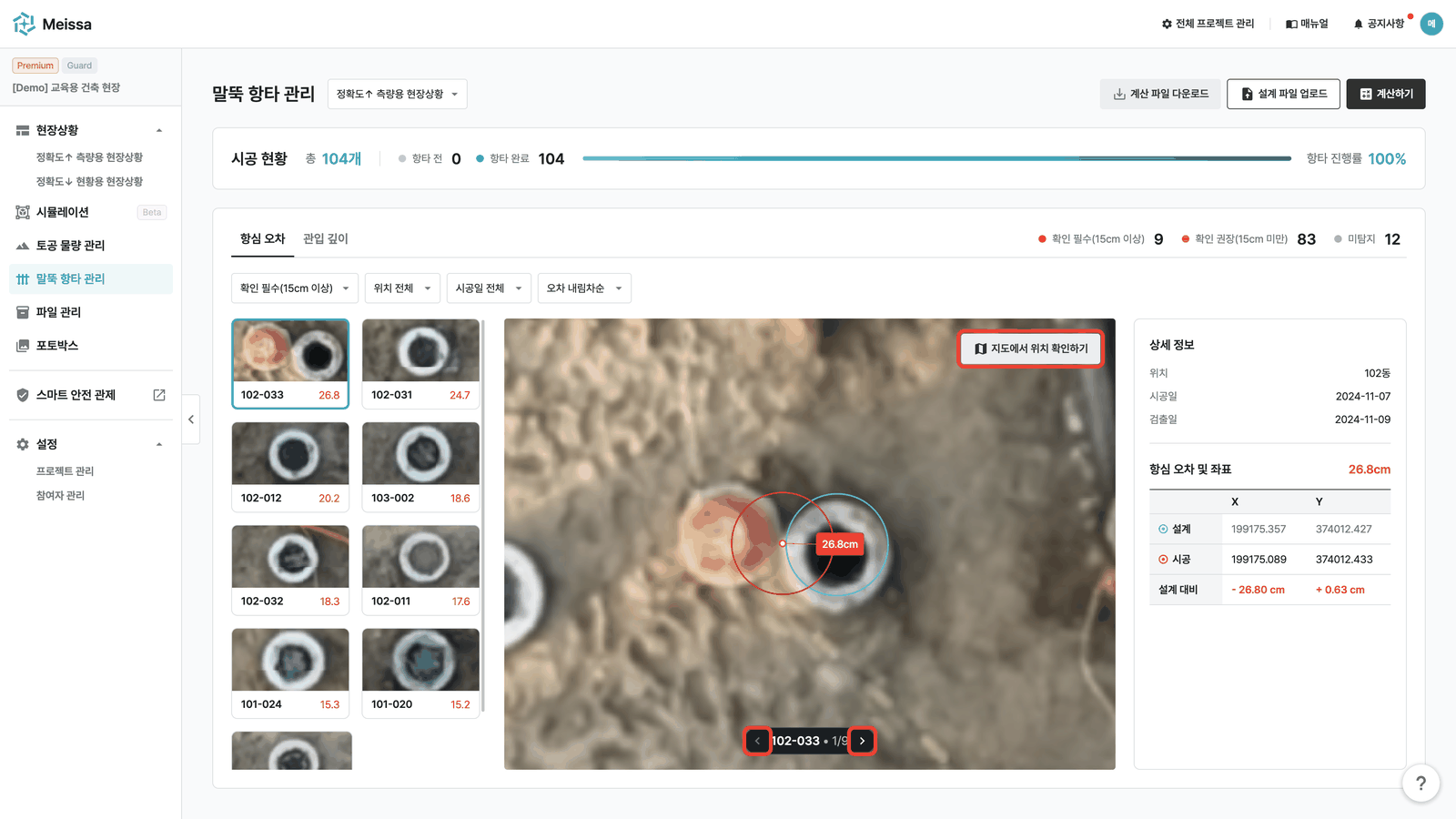
Calculating penetration depth requires the full pile length, the elevation of the pile top, and a reference elevation. The platform uses values from the pile driving log together with values from the imagery to calculate depth against both the planned grade and the site ground level.
The work of finding the length in the log, pulling in the elevation data, and calculating pile by pile can be handled in one go. Once you have the results, review the depths against both references and recheck any pile where the entered length or the calculated result differs from expectations.
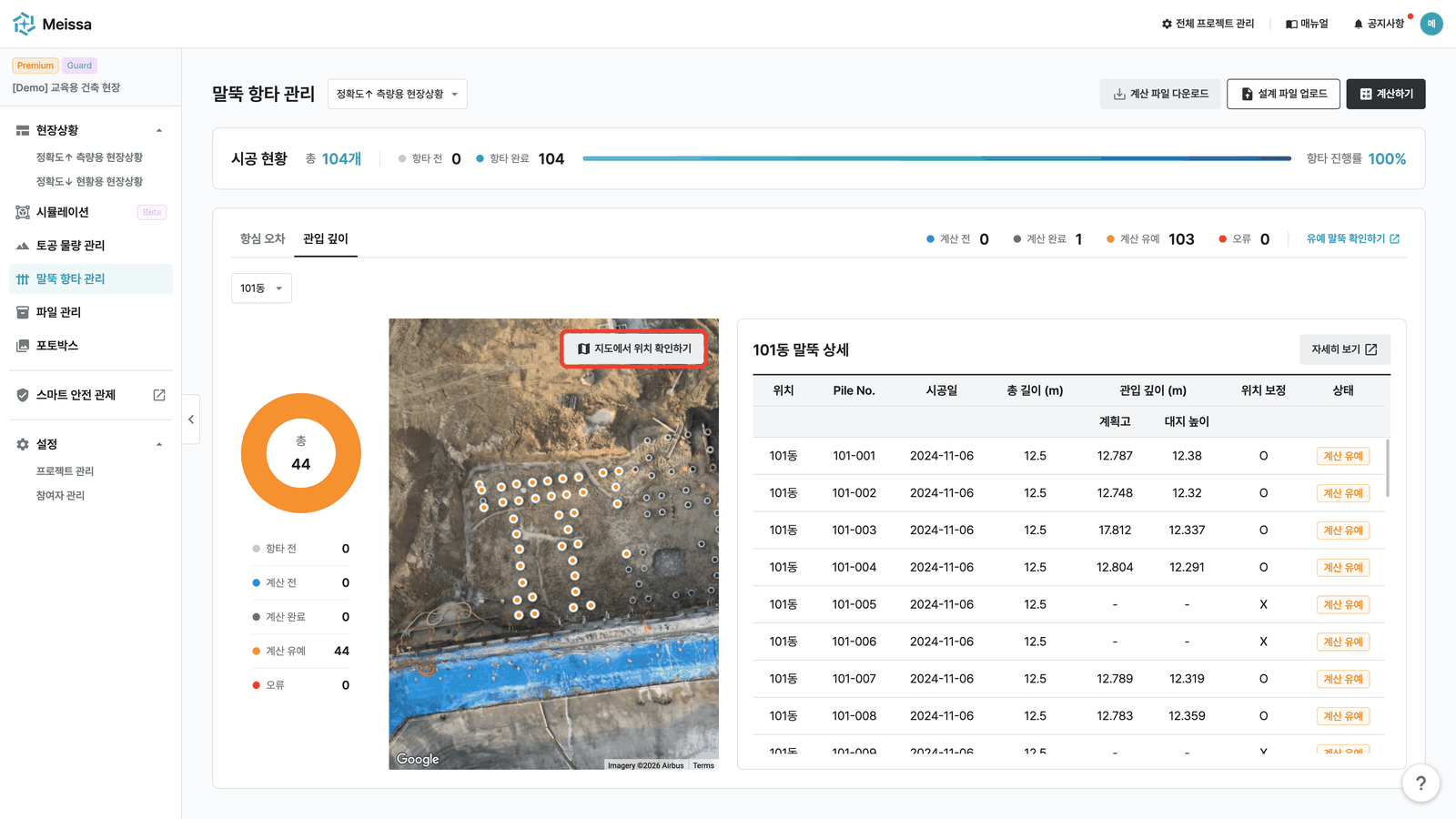
The dashboard shows driving progress and calculation progress separately by location (building). Because you can see the number of piles driven alongside the number finished calculating, it is easy to tell whether calculation or review is still outstanding in a building where driving is already done.
During calculation, any target with an abnormal depth value or where the photo and the pile could not be properly matched is flagged as 'calculation deferred.' Review the deferral reason and the photo and, if needed, correct the position of the pile center found in the photo. It cuts the effort you used to spend on repeated calculation so you can spend that time reviewing the results instead.
A drone platform is a web tool that analyzes captured photos to turn them into site data with position and elevation, and lets you use that data alongside design and construction material. Because you know which coordinates a photo corresponds to and how high the surface is, you can compare design positions or calculate lengths.
A drone captures the same area across multiple overlapping photos. By using the points that appear in common across those photos to compute three-dimensional shape, you can turn the site surface into 3D data. This principle of obtaining three-dimensional point data from overlapping photos is also explained in the U.S. Geological Survey (USGS) overview of photogrammetry.

A photo laid out like a map looking down on the site from above is called an 'orthophoto.' The platform finds the pile centers in this photo and compares them with the coordinates in the design file. That is also why the photos and the design have to be aligned to the same coordinate reference.
If you know the elevation of the pile top and of the surrounding ground from the imagery, you can derive the length remaining above ground. Add the full pile length recorded in the log and you can calculate the length that went below ground.
Penetration depth = full pile length − length remaining above the reference elevation
A different reference elevation gives the same pile a different depth value
A diagram of a case where the surrounding ground level is higher than the planned grade.
Pile top
Surrounding ground level
Planned grade
Pile tip
Penetration depth is calculated by subtracting the length remaining above each reference elevation from the full length. A different reference elevation gives the same pile a different depth value.
The photos provide the elevation of the pile top and of the ground surface; the log provides the full pile length. Rather than capturing the pile tip underground, the depth is derived by using these two sources together.
Depending on where you set the reference elevation, the result splits into two.
| Reference for penetration depth | What the depth means |
|---|---|
| Planned grade penetration depth | Depth calculated against the elevation set in the design |
| Ground level penetration depth | Depth calculated against the elevation of the ground around the pile |
For example, if the surrounding ground is higher than the planned grade, the same pile shows a larger depth when calculated against the ground level. The difference comes from the different reference elevation. When you compare values with other sources, first check which elevation the calculation used as its reference.
This calculation is used to review the condition after construction. Construction decisions during driving, final conformity of the work, and bearing capacity verification are carried out according to site standards and the required surveys and tests.
To start automatic calculation, you need a design file, a pile driving log, and imagery that meets the conditions. Add a designated person to run the calculation and review the results, and everything from preparing the material to reviewing it goes smoothly.
The file formats and capture conditions below are the requirements for using the pile management features of the drone platform covered in this article.
You need a csv, xlsx, or xls file of up to 10MB containing the coordinates of the design pile centers. The same pile number can exist in several buildings, so check the location (building) together with the Pile No. These two items also have to be written in the log with the same values as in the design file for the design and the construction records to link correctly.
Check the coordinate reference of the design coordinates and of the imagery as well. You can look at the role site control points play in aligning that reference in more detail in our article on GCPs and coordinate errors in drone surveying. To see depth against the planned grade, you also need the planned grade data for that location.
If you already have an Excel file in use, compare it first against the platform's latest upload template. If it only contains coordinates, you will also need to prepare the full lengths used for depth calculation. The length used in the calculation has to match the actual construction record.
The construction date matters too. The platform links each pile with the first orthophoto captured after its construction date. The date written in the log is what decides which imagery the calculation uses.
The capture altitude for pile calculation is 100m or lower. It is the capture condition for securing the three-dimensional data around the pile that elevation calculation needs. If you have a flight path that has been monitoring the whole site, check whether it meets this condition. You may need to separate the monitoring path from the calculation path.
Because the completed piles have to appear in the imagery, it also helps to set the driving schedule and the capture schedule together. If you are already using drones, check whether your current flight path and data suit pile calculation before looking at new equipment.
Once the orthophoto analysis is finished, upload the pile driving log, check the calculation targets, and run it. Completion of the imagery analysis and the pile calculation are separate, so you need to designate someone to run the calculation.
After the calculation, review the targets left as calculation deferred or in error along with the completed results. For piles left as calculation deferred, review the photo and the reason and correct the position if needed. If something is marked as an error, recheck the calculation conditions — whether it falls within the planned grade range, whether there is enough three-dimensional data around it, and so on.
Check these two things before uploading, too
Start by looking at the design file and pile driving log you use today. Check whether the pile number, construction date, and full length are all there, and whether the flight path meets the calculation conditions. Once you have the required material and capture conditions in place, you can leave the per-pile positional differences and depth calculations to the platform. The person in charge can then easily see which targets need a second look by viewing the photos and the results together.
If you are curious how site data can be used at headquarters as well, see How Headquarters Sees Every Site on One Screen — The 3-Step DX Guide. STEP 2 covers data integration on the map and AI pile usage.

